When you designate someone as an emergency contact, they can request access to your vault in an emergency. Once they request access, you'll be notified and given a waiting period to respond. If you don't respond in time, they'll gain access to your full vault. You control who's on the list and how long the waiting period is.
Adding a new emergency contact.
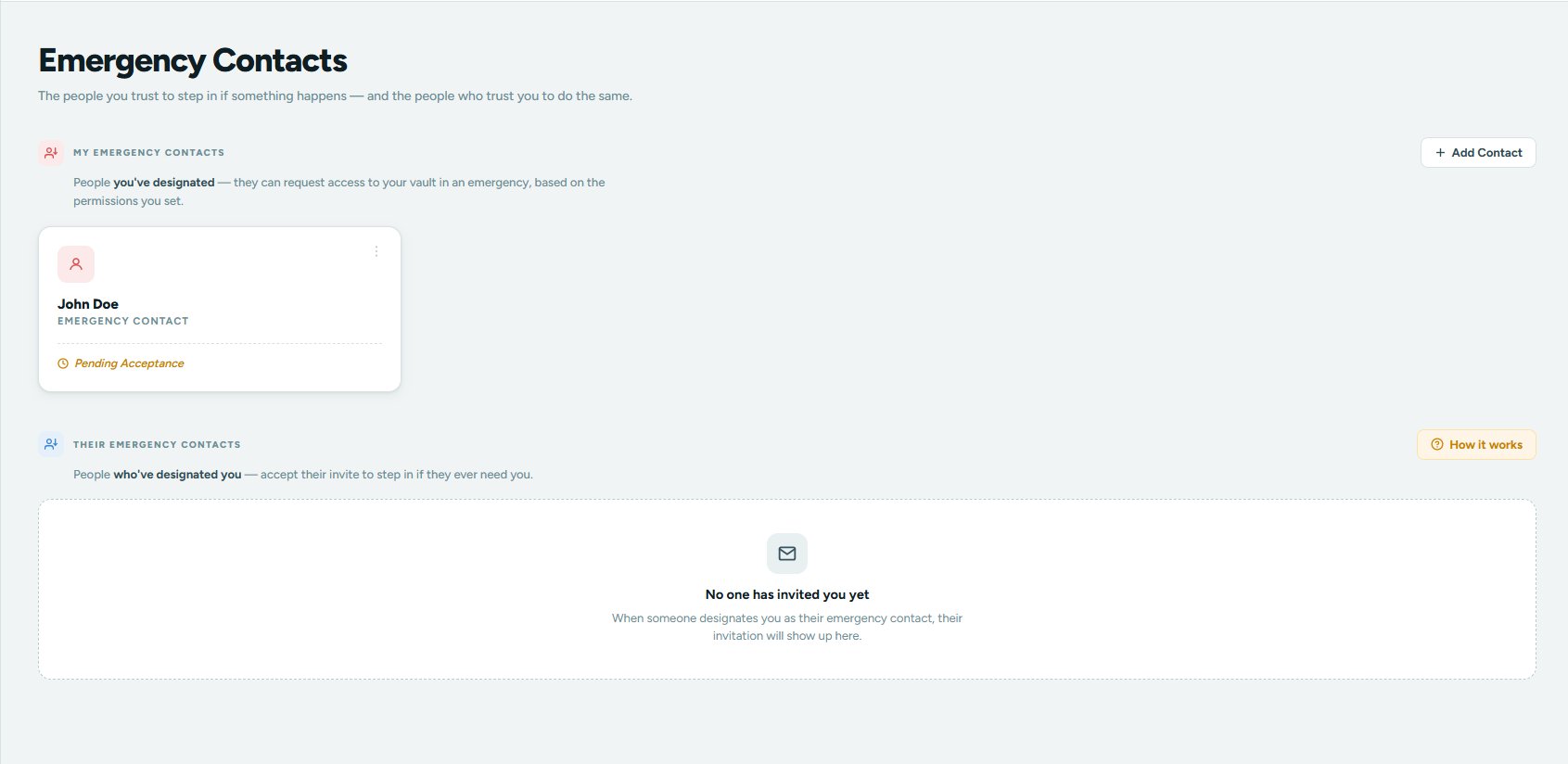
Adding someone takes about a minute. Once you send the invitation, the person you invited will get an email asking them to accept. Until they accept, their card will show as Pending Acceptance.
-
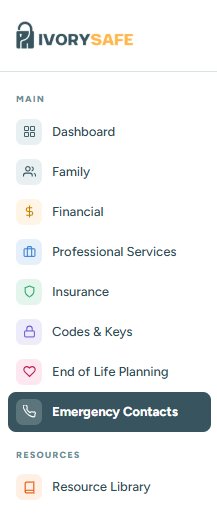
Open the Emergency Contacts tab.
From the left sidebar in your vault, click Emergency Contacts.
-
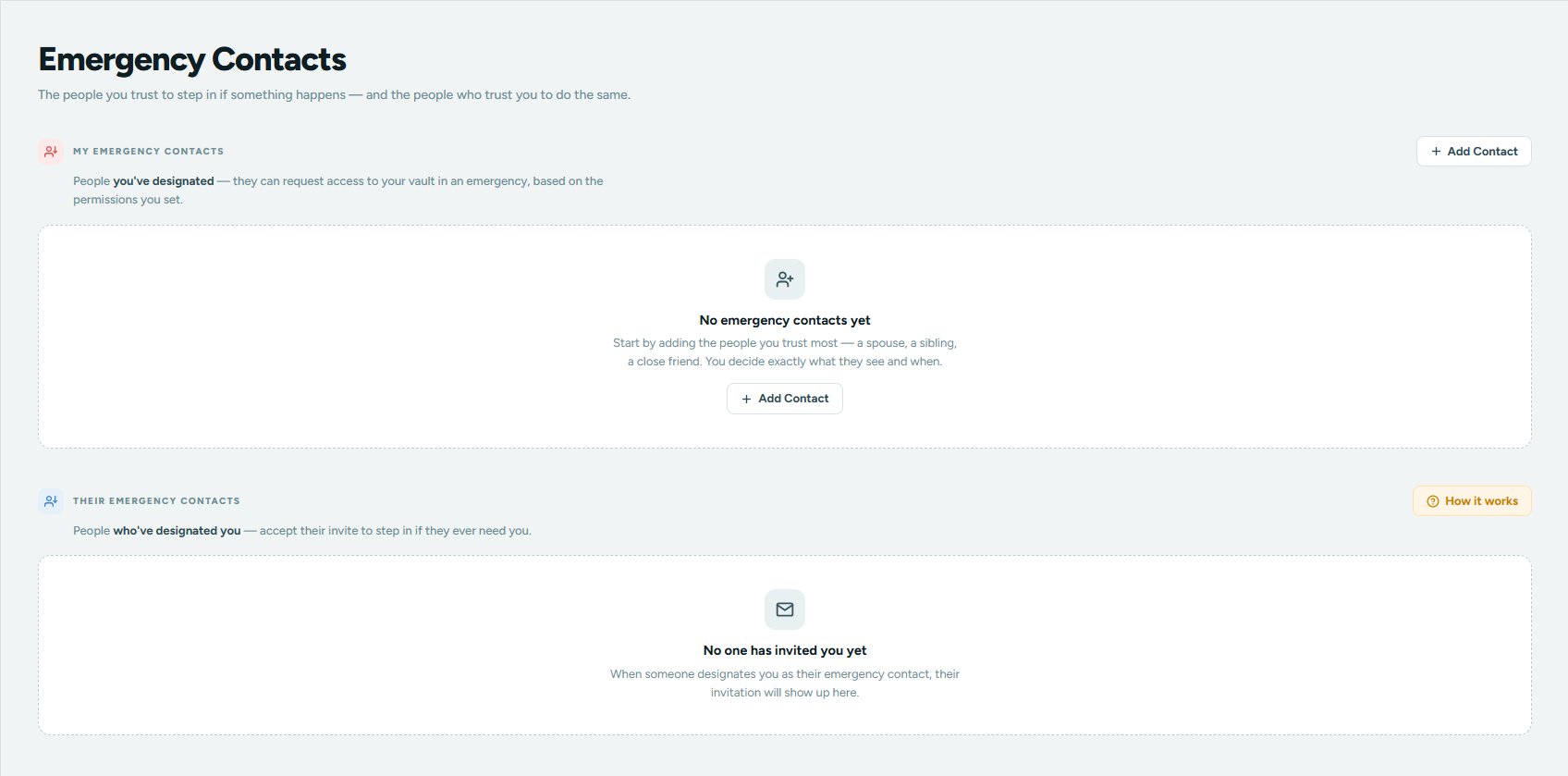
Click "Add Contact."
You'll see two ways to do this. If you don't have any contacts yet, click the centered button inside the empty card. Otherwise, use the + Add Contact button in the top right.
-
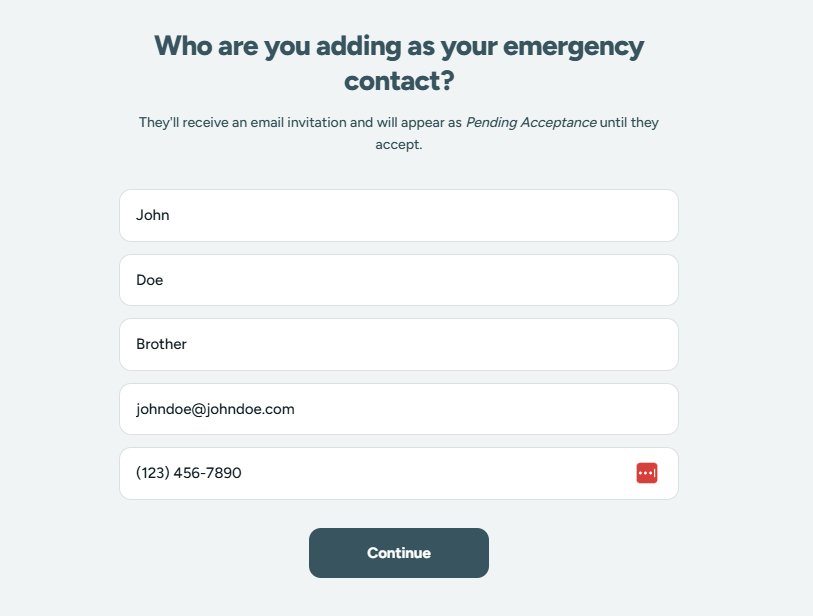
Enter their information.
You'll need their first name, last name, relationship to you (Mom, Brother, Best Friend, anything that helps you remember the connection), email address, and phone number. All fields are required so we can reach them when needed. Click Continue when everything's filled in.
-
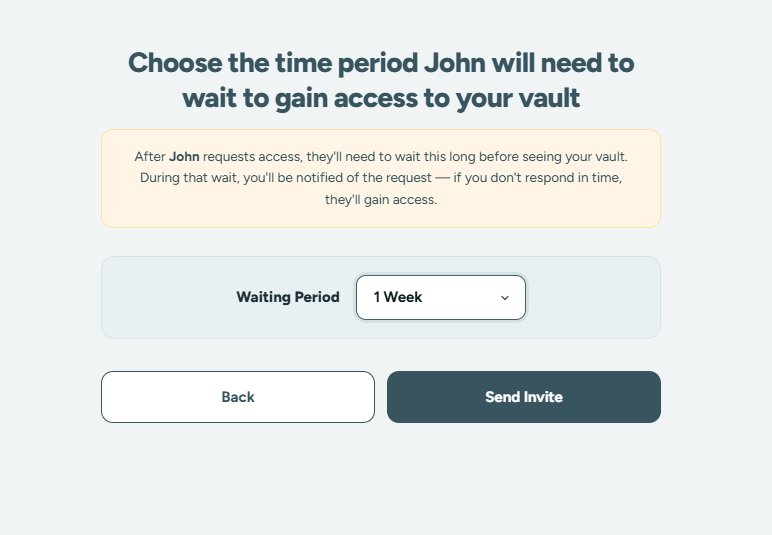
Choose a waiting period.
This is the amount of time IvorySafe will wait between when this person requests access and when they'd actually receive it. During that wait, you'll receive multiple notifications by email and text. If you don't respond, they get in. Pick the option that fits how quickly you'd want them to have access. The default is 1 week.
-
Click "Send Invite."
We'll email the person you invited with instructions to accept. Their card will appear in your contacts list as Pending Acceptance until they confirm.
Choosing the right waiting period
The waiting period is one of the most important decisions you'll make when setting up a contact. There's no one right answer. It depends on the person and your situation.
- 6 hours works for someone you'd want to act on your behalf almost immediately, like a spouse you'd trust without question.
- 12 or 24 hours gives you a buffer to respond if you're just busy or out of reach, while still being reasonably fast.
- 48 hours, 1 week, or 2 weeks works for contacts you want as a backup, where you'd want clear time to confirm something is actually wrong before access is released.
You can set different waiting periods for different people. Your spouse might be 6 hours; a sibling might be 48 hours; a close friend might be a week.
Editing an existing emergency contact.
If you need to change someone's information or update their waiting period, you can do it without removing and re-adding them.
- Find the contact in your list. From the Emergency Contacts tab, locate the person you want to edit.
-
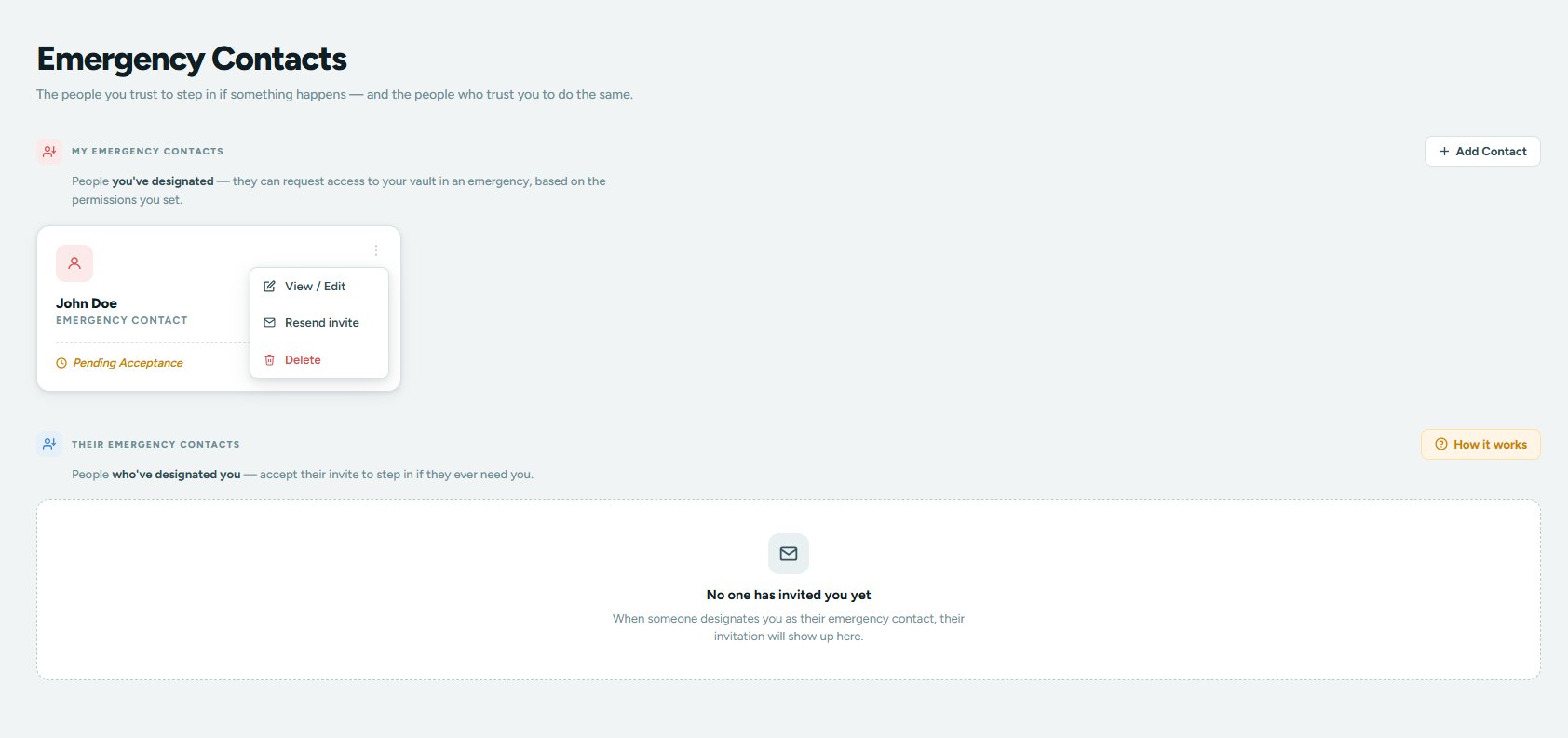
Open the contact menu.
Click the three-dot menu in the top right of their card and choose View / Edit.
-
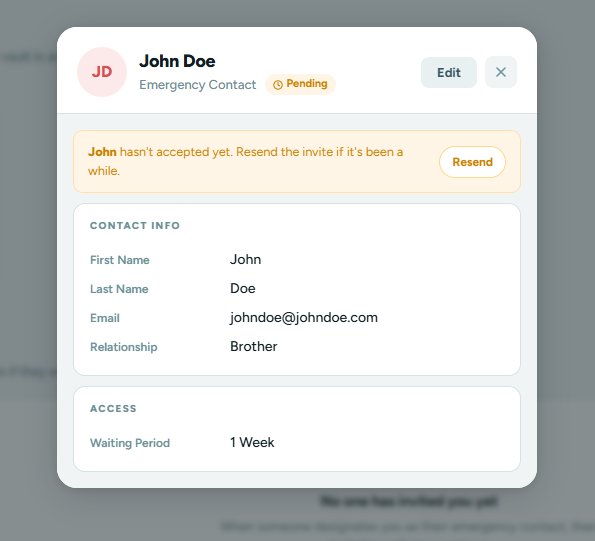
Review their current details.
A modal will show their current contact info and waiting period. If they haven't accepted the invite yet, you'll see a banner letting you resend it.
-
Click "Edit" to make changes.
The fields will become editable. Update whatever you need to change, then click Save.
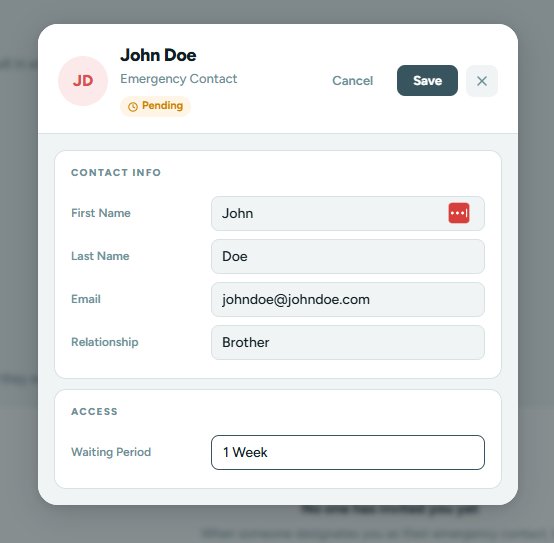
Updating the email on a pending contact will trigger a fresh invitation to the new address. Updates to other fields don't require re-acceptance.
Removing an emergency contact.
Life changes. You might want to remove someone after a relationship change, or because you'd rather designate someone else. Removing a contact is permanent and takes effect immediately.
- Open the contact menu. Click the three-dot menu on the contact card you want to remove.
- Click "Delete." The contact will be removed from your list right away. If they had already accepted, they'll be notified that they're no longer your emergency contact.
This is your call, but it's worth thinking about. If you're removing someone, consider adding a replacement first. You can have more than one emergency contact at a time.
Common questions.
How will I know if someone requests access?
You'll be notified multiple times during the waiting period through email and text message. If you log in to IvorySafe during that time, you'll also see a popup letting you know about the request and giving you the option to decline it.
What happens if I don't respond during the waiting period?
If the waiting period passes without you logging in to decline, your emergency contact will gain access to your full vault. This is the design: the waiting period exists so a legitimate request from a trusted person can succeed even if you're unable to respond.
Can my emergency contact see my password?
No. Your password is never accessible to anyone, including your emergency contacts. When they gain access through the emergency flow, they see the contents of your vault, but they never see your login credentials.
What if I want to remove someone who hasn't accepted the invite yet?
Pending contacts can be deleted the same way as accepted ones. They won't be able to accept the invitation after you delete them.
How many emergency contacts should I have?
You can add more than one, and most people add a few. The right number is whoever you genuinely trust to make decisions on your behalf, not as many people as possible. Think about who would actually need to step in if something happened to you, and start there.
What happens to my emergency contacts if I cancel IvorySafe?
Your emergency contact relationships end when your subscription ends. We don't send your contacts a notification about your cancellation, but they may notice the change when they next log in to their own account. If you've built these relationships intentionally, it's worth telling your contacts directly so they hear it from you. Learn more about what happens after you cancel.
Still need help?
If you've worked through this article and still aren't sure what to do, our team is here to help.
Email supportOr copy and paste: support@ivorysafe.com